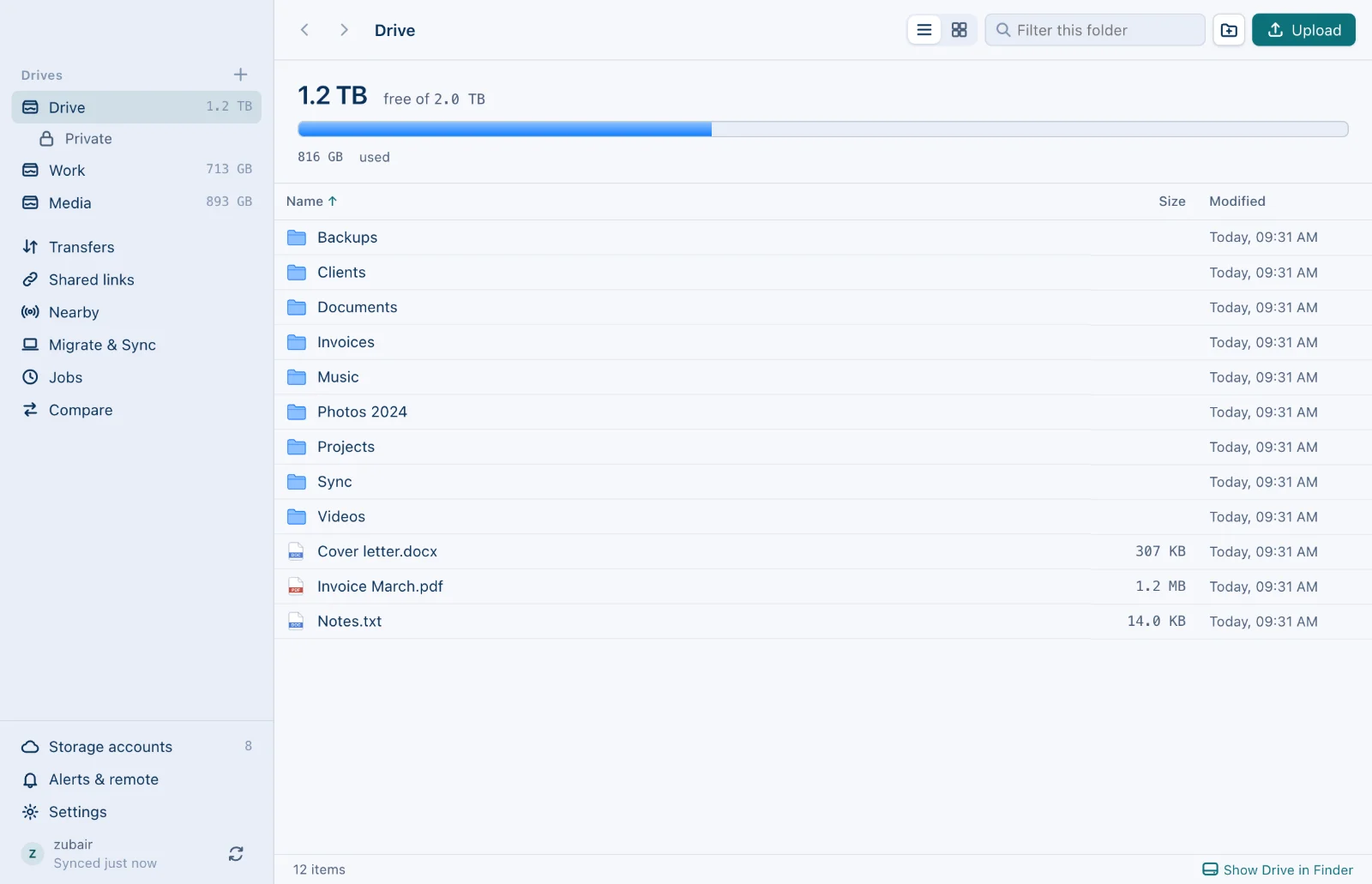
CloudPool turns storage accounts into drives, keeps folders in sync, runs jobs on a schedule and tells you when something needs you. Here is every part of it, with the details.
Storage
Drives: as many as you need
Create separate drives such as Personal, Work and Media. Each drive pools its own accounts, with no limit on how many it holds, and shows their free space as one number.
Every drive can appear as its own disk in Finder, in File Explorer or as a folder on Linux, and any drive or single account opens in a window of its own.
Storage
59 storage services
Cloud drives: Google Drive, MEGA, TeraBox, GitHub, OneDrive, Dropbox, Box, pCloud, Yandex Disk, Koofr, iCloud Drive and Proton Drive, and 16 more.
Object storage: Amazon S3 and 17 other S3-compatible services such as Cloudflare R2, Wasabi and Scaleway, plus Backblaze B2, Storj, Google Cloud Storage, Azure Blob Storage, Azure Files and OpenStack Swift.
Your own hardware: Nextcloud, ownCloud and any WebDAV, SFTP, FTP or SMB server, NAS boxes included, and disks plugged into your computer.
Also, for jobs: iCloud Photos, Google Photos and Web folder (HTTP), which are not part of a drive but can be copied from or into with a job.
Files under 100 MB go to small-file accounts such as Google Drive and MEGA. Bigger files go whole to big-file accounts such as TeraBox, buckets and servers, and files over 3.5 GB are split into pieces across accounts, then put back together byte for byte when you open them.
The 100 MB line moves anywhere from 25 MB to 500 MB, and any account can switch between small and big. CloudPool also knows each service's largest-file limit, such as 4 GB on free TeraBox and 100 MB on GitHub.
A 9.4 GB video kept as pieces on three accounts. In the drive it is one file you can open, move, rename or download.
Moving files
Two-way sync
Keep a folder the same on your computer and in your drive: add, change or delete a file on either side and the other side follows. When the same file changed in both places, both are kept, and this computer's copy gets (conflict from <computer> <date>) in its name.
Deleted files wait 30 days in the drive's Deleted files folder, or go to the computer's Trash. Keep one folder the same on several computers, switch a folder to Back up when you only want a copy, or pause all syncing and resume later. Phones back up their photos and videos too.
Moving files
Migrate folders off your computer
Move whole folders into a drive to free up space on your disk. Each file leaves the computer only after it has arrived safely, so stopping halfway loses nothing.
Apps, system folders and photo libraries are left alone, and a restore button brings any migrated folder back to where it came from.
Moving files
Scheduled jobs
Copy, mirror, move or check files between any two places: a folder on your computer, a drive, or a single account. Narrow a job with filters by name, size and age, and run it by hand, every few minutes, daily at a set time on chosen weekdays, or when CloudPool starts.
Jobs reach past your drives too: copy your iCloud Photos library into a drive every night, upload photos into Google Photos, or fetch files from a web folder. Each job keeps its last 25 runs, a run missed while the computer slept happens once it can, and many jobs can be run, stopped, enabled or deleted at once.
Looking at your files
See what is in a file, and in a folder
Press space on any file and it opens in the window: photos, PDFs, text and code, video and music that play, and on a Mac anything Quick Look can draw, which covers Illustrator, Photoshop, Word, Excel, Pages, Keynote, HEIC and camera raw. Illustrator files open as pages you can zoom, and EPS shows the preview saved inside it.
The two buttons at the top of a folder switch between the list and a grid of tiles that shows what is actually in each file. Every picture is kept on your computer, so a folder you have opened before comes back in a blink, and the files either side of the one on screen are fetched while you look.
Moving files
Compare two folders
Put any two places side by side (folders on your computer, drives, single accounts or a photo library) and CloudPool sorts every file into the same, different, only on the left or only on the right. Files count as different by size and date, or by checksum when you ask.
Nothing changes until you say so: copy the files you pick in either direction, or export the list as a CSV file for a spreadsheet.
Privacy
Private folders
Each drive can have a private folder. Files you put in it are encrypted on your computer before they are uploaded, file names included, so the storage service only ever sees scrambled names and contents.
Its key is made on your computer and travels only inside your encrypted CloudPool login: your signed-in computers open the folder as usual, and it can appear as a disk of its own. Private files cannot get share links, and the phone app cannot open them.
Get a desktop notification, an email from your own mail account (Gmail, Outlook or any mail server), or a message in Slack, Discord or Telegram when something needs you: a failed job, a sync conflict, low space, or an account that needs signing in again.
Each kind of alert can be off, problems only or everything. Quiet hours hold everything but errors, the same alert comes at most once in six hours unless it gets worse, and a daily summary email can sum up the day.
Alerts
Remote control from chat
Connect your own Telegram, Discord or Slack bot and control CloudPool from your phone: ask for the status, start a sync, pause syncing, run a job or make a share link.
CloudPool shows a six-digit code, and only the private chat that sends it gets answers; anyone else is told the bot is private. Commands that touch files on the computer stay in the command line.
Telegram
Discord
Slack
CloudPoolon your computer
status
sync now
sync pause
jobs run
link
Sharing and devices
Share links, Nearby, phones and one login
Share links
Share a file as a short cloudpool.vercel.app link that shows its name and size, then downloads from the account that holds it. Shared links counts the opens and stops a link for everyone at once.
Nearby
Send files over Wi-Fi to computers running CloudPool and to phones and PCs with the free LocalSend app. Files cross your own network, never the internet.
Phone web app
Open cloudpool.vercel.app/app on an iPhone or Android phone to browse, upload, download and share, with your computers switched off.
One login
Sign in with Google and every account comes to your other computers and your phone, kept encrypted on the sync server.
Settings and tools
The controls you reach for later
Most of these live in Settings, which has tabs for General, Storage, Transfers, Privacy, Appearance and Advanced.
Speed and parallel transfers
Set one limit for uploads and one for downloads, all day or only during the hours you choose, such as work hours. Choose how many files move at once, separately for uploads and downloads (eight each unless you change it).
App lock
CloudPool asks for a passcode you choose, or Touch ID on a Mac, before it shows your files, and can lock again when the computer sleeps or after you have been away. Syncing and transfers carry on while it is locked.
Detailed logs
See what CloudPool and its transfer engine did, with filters and with passwords and tokens hidden. Switch the engine to debug detail while you chase a problem, then set it back.
Command line
Install the cloudpool command from Settings and use your drives from terminals and scripts on Mac, Windows and Linux. Add --json for output a script can read.
$ cloudpool status
$ cloudpool ls Work:Photos
$ cloudpool sync now
$ cloudpool jobs run Nightly
Themes
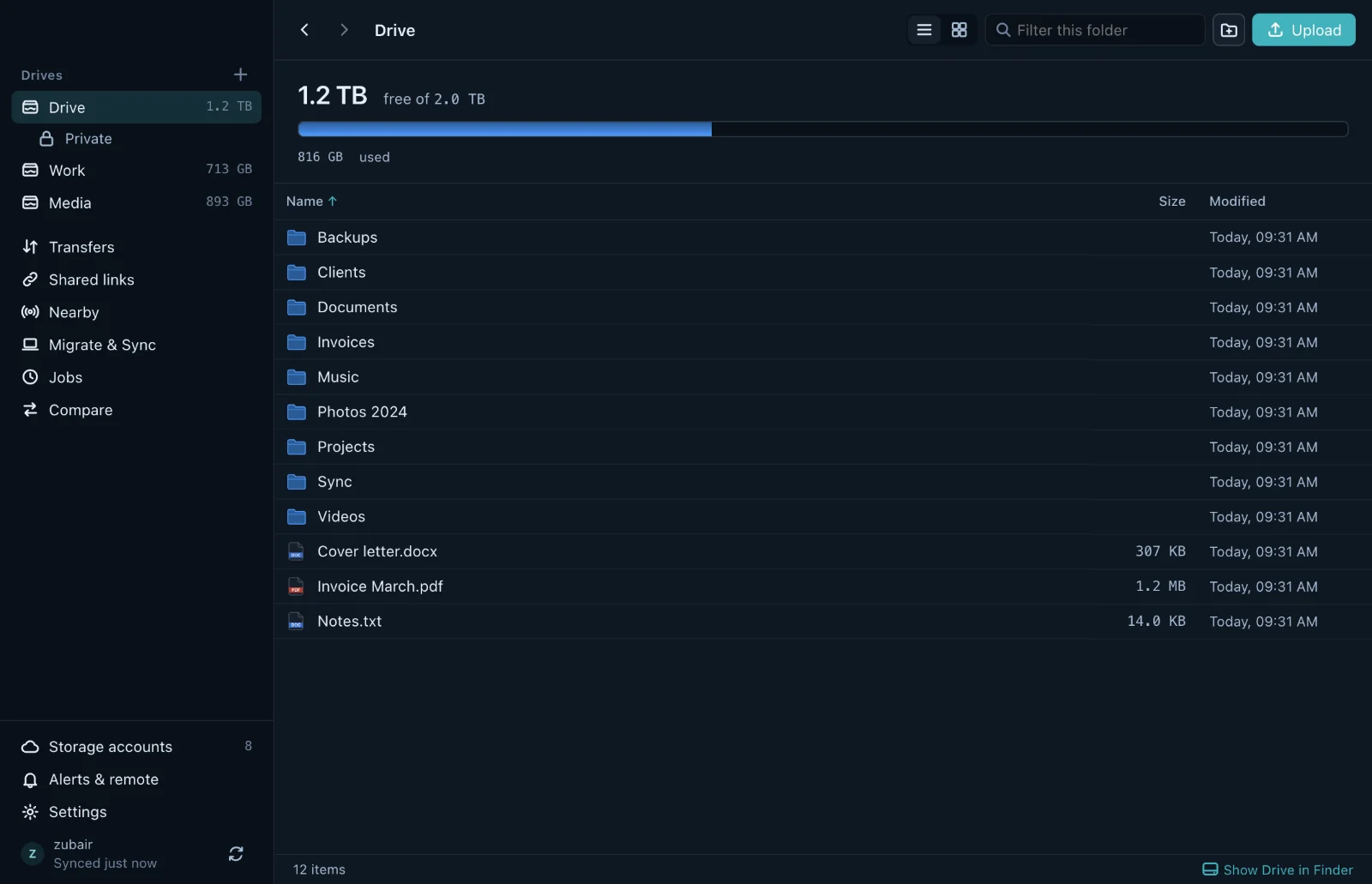
Light, dark or following the system, with a choice of accent colors.
Back after a restart
After a restart, or when the computer wakes from sleep, CloudPool mounts your drives again by itself, so apps find their files where they left them.
Try it with the accounts you already have.
Free for Mac, Windows and Linux. One login works on all of them.



 CloudPool